Make today’s work easy to scan.
SELECTED WORK / 01
Agenda
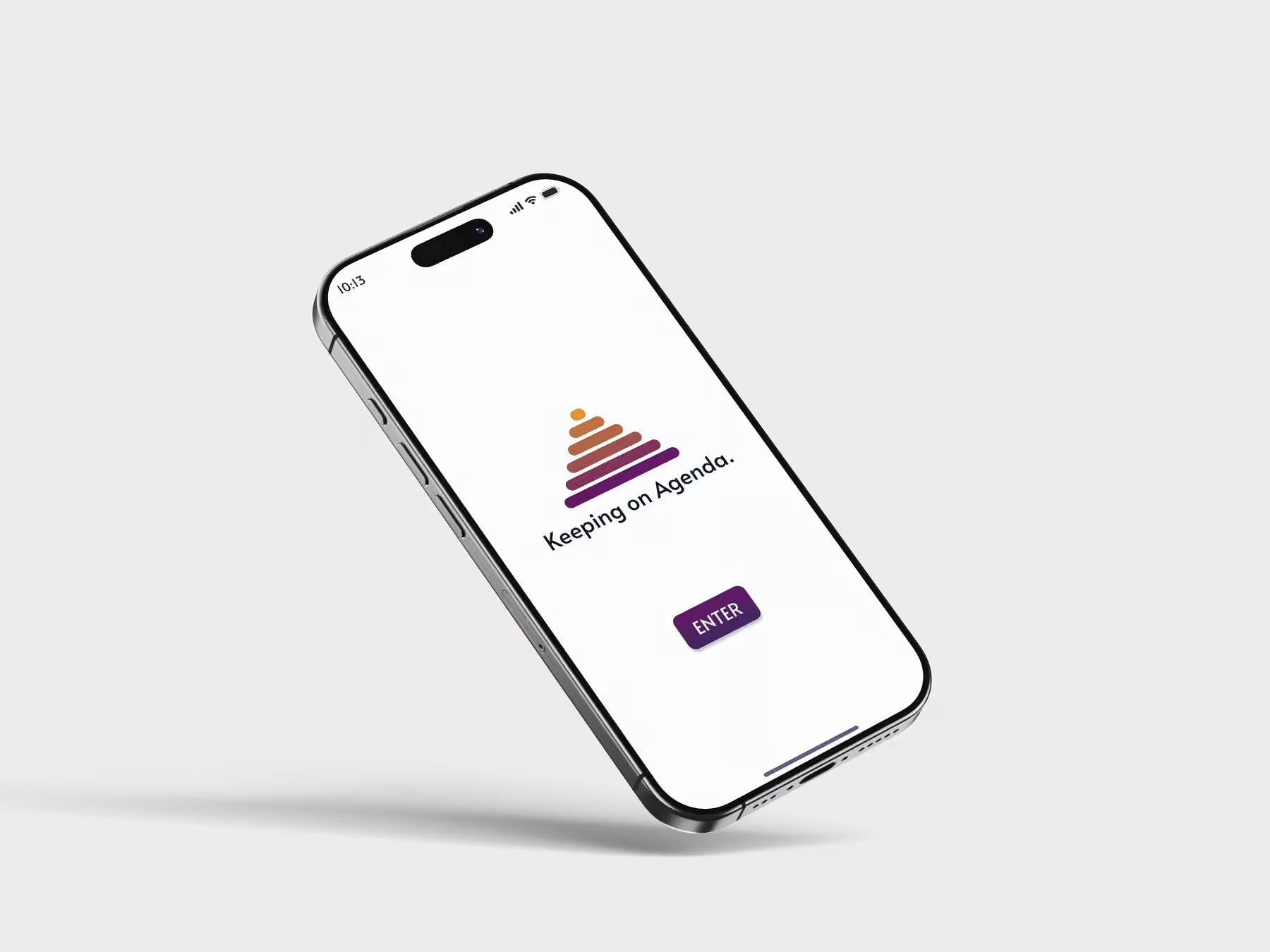
Agenda is a self-directed mobile planning concept that brings events and tasks into one calm view, with a quick start and room for routines to change.
ROLEUI/UX designer
TOOLFigma
TEAMIndependent
TIME2 weeks · Dec 2023
01 / THE CHALLENGE
Design Challenge
I started with a familiar planning tension: a tool can make schedules visible while asking people to manage another complicated system. Agenda explores a lighter starting point—show the next event and task clearly, postpone nonessential choices, and leave room for routines to change.
Let routines evolve without adding clutter.
Show value before asking for preferences.
02 / UNDERSTANDING
User Persona
As a self-directed concept, Agenda did not begin with interviews. Amy A. is a working persona, not a research participant: a college student juggling classes, events, and everyday tasks. I used her scenario to test where planning might feel helpful and where setup or tool switching could become a burden.
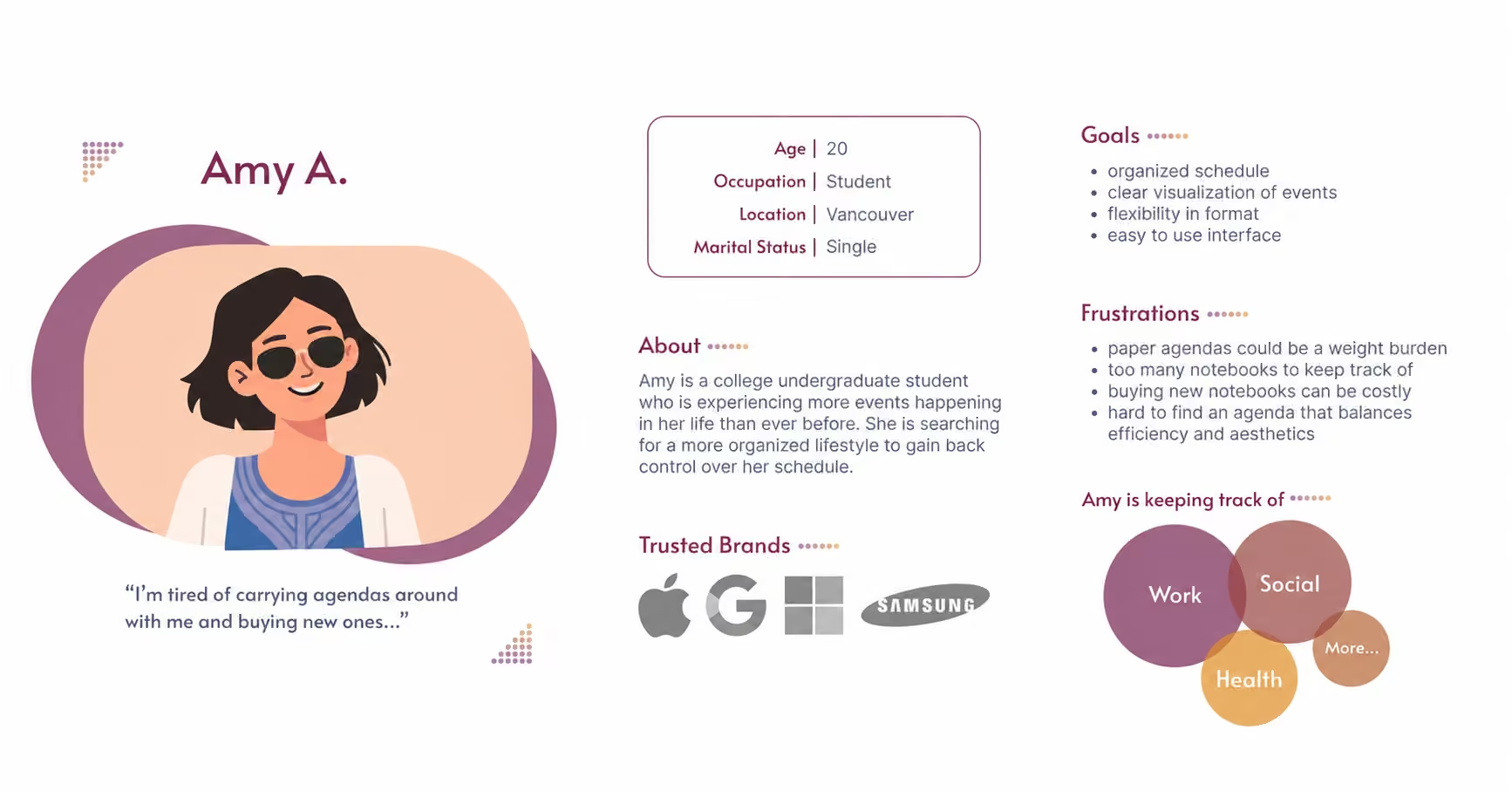
StageWhat they needWhere it gets hardDesign opportunity
OnboardingGet started quicklyToo much setup, too soonShow value before asking for preferences
Daily useSee tasks and events clearlyClutter and tool switchingBring the day into one calm view
RetentionBuild habits over timeFeatures feel fixed or bloatedOffer room for routines to evolve
03 / STRUCTURE
Information Architecture
I mapped the app structure before polishing screens. Onboarding leads to a home hub; Settings, Calendar, Tasks, and Profile each have a clear place beyond it. Keeping those destinations distinct let the home screen focus on what needs attention today.
01 / STARTOnboarding
02 / ACCESSEnter
03 / HUBHome
Settings
- General
- Notifications
- Appearance
Calendar
- Month
- Week
- Day
Tasks
- Rows
- Blocks
Profile
- Log in
- Archive
- Language
FROM PAPER TO PIXELSSketches &
Sketches &
Wireframes
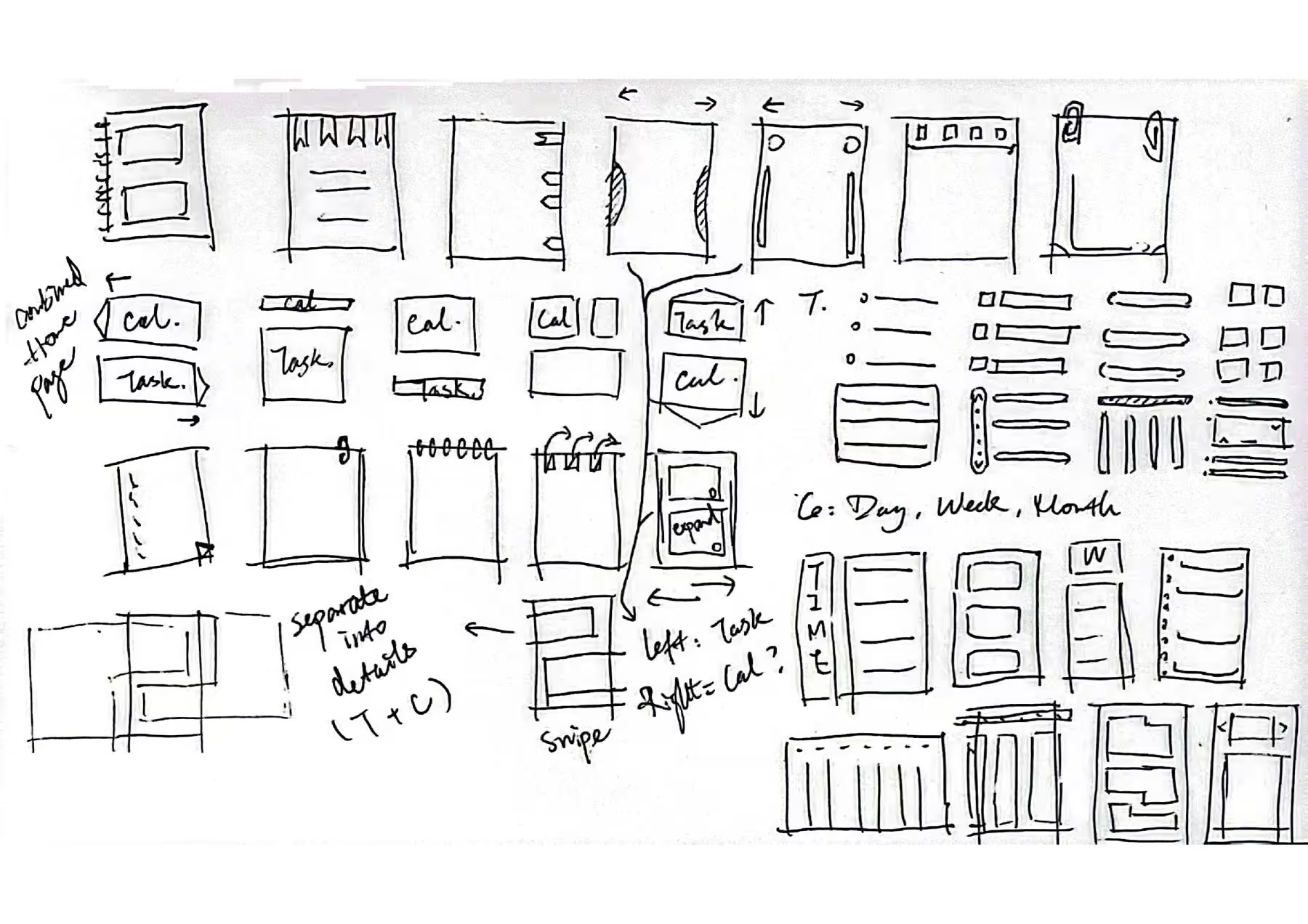
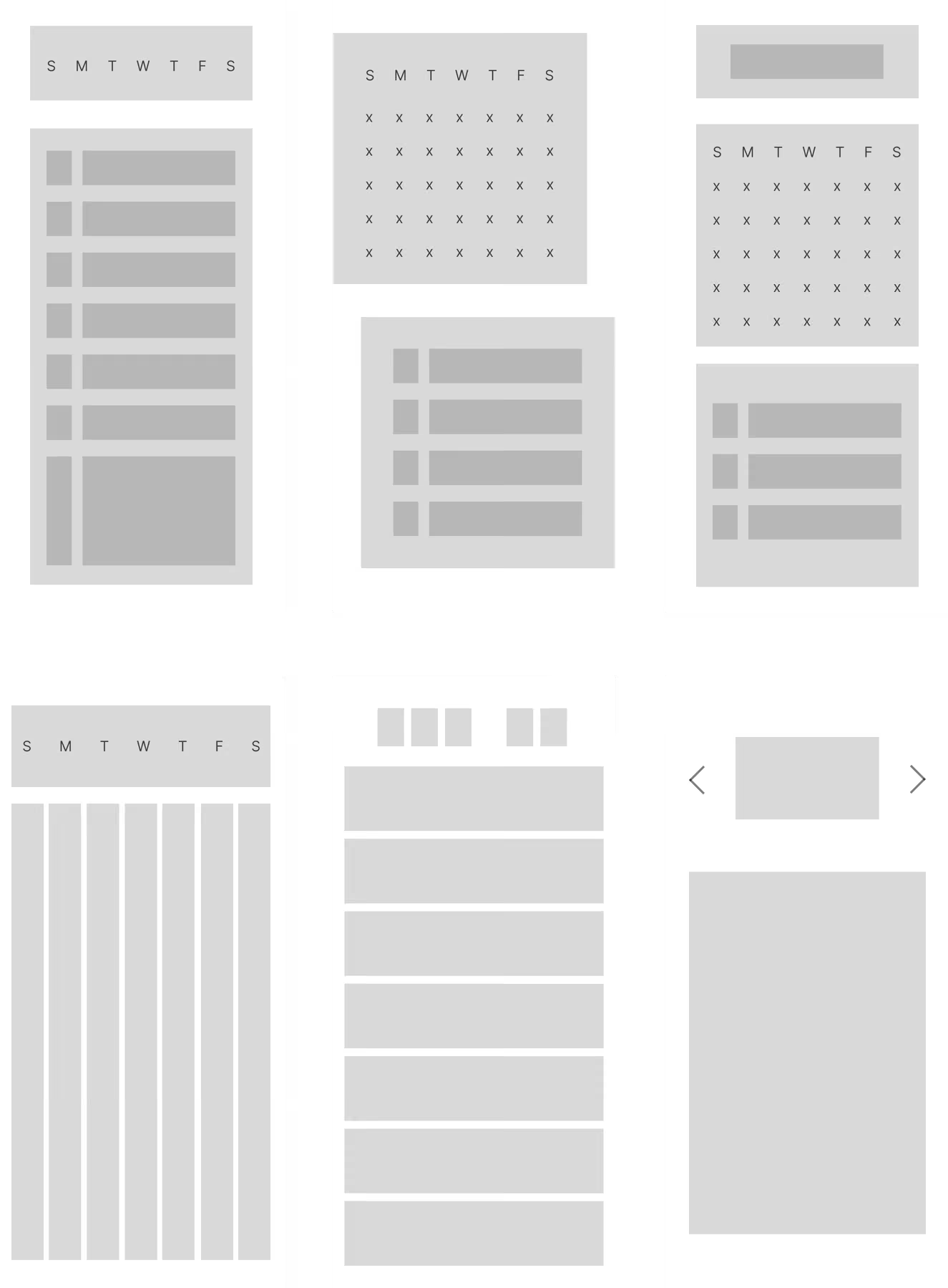
I sketched dense calendar layouts, separate task lists, and simpler weekly views. The dense versions exposed more at once but made the next action harder to find. I carried a compact calendar and a short task list into the wireframes, keeping row and block views as options for different planning habits.
04 / VISUAL LANGUAGE
Visual Identity
I used a steady layout rhythm and muted, warm colors to make planning feel organized without becoming clinical. Small color accents draw attention to dates and priorities; quieter surfaces leave the schedule itself easy to read.
01 / MOODBOARD

02 / IDENTITY
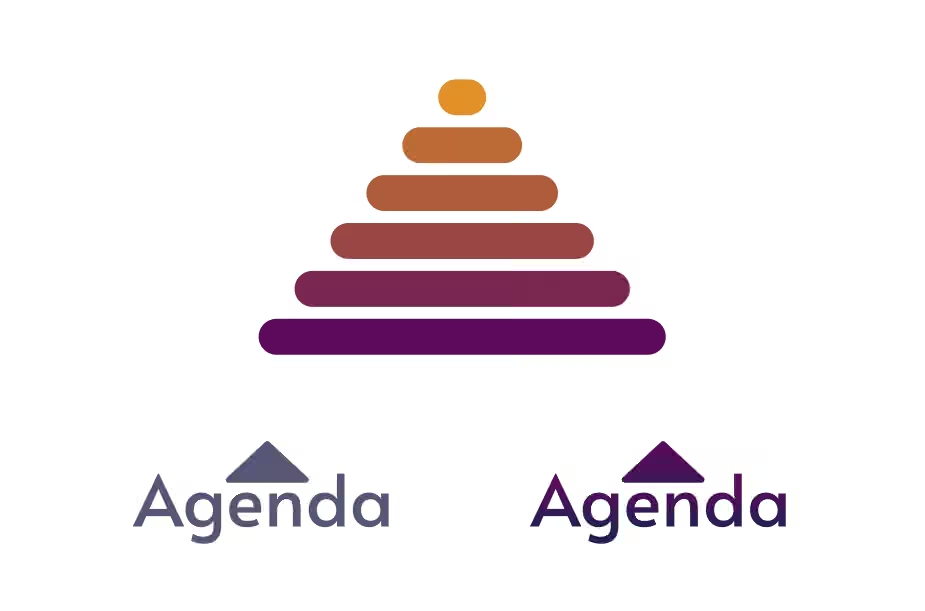
The stacked mark grows upward, giving Agenda a sense of progress without pressure.
05 / THE EXPERIENCE
Interactive Prototypes
The prototypes carry those decisions into everyday use: start without configuring a system, find the next task beside the calendar, then switch views when the work calls for more detail.
01 / ONBOARDING
A gentle first step
The opening motion builds the logo from the bottom up, setting a focused tone before asking the user to do anything.

02 / HOME
Today, at a glance
A calendar strip sits above time-sensitive tasks, so the next thing is easy to find. Color hints at how full the week is without demanding more attention.

03 / CALENDAR
Plan without losing place
Adding an event happens in a focused sheet over the current view. The essential fields appear first; details stay available when needed.

04 / TASKS
Two ways to see the work
Tasks can sit in rows or blocks. Clear date dividers and slim priority bars make the list readable while leaving room for different planning habits.

06 / ITERATION
Design Iteration
I reviewed onboarding, task creation, and calendar changes against three questions: Is the next action clear? Can optional choices wait? Can someone keep their place while switching views? The first add-event sheet put title, time, color, description, and save controls in front of the user at once, so I reorganized it around the details needed to create an event.
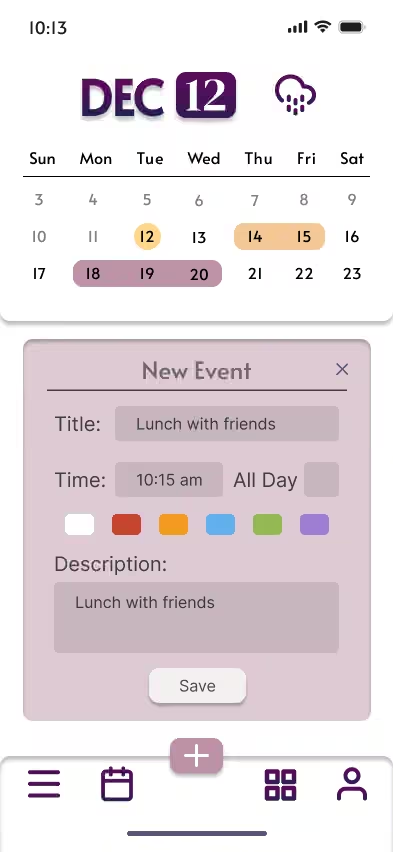
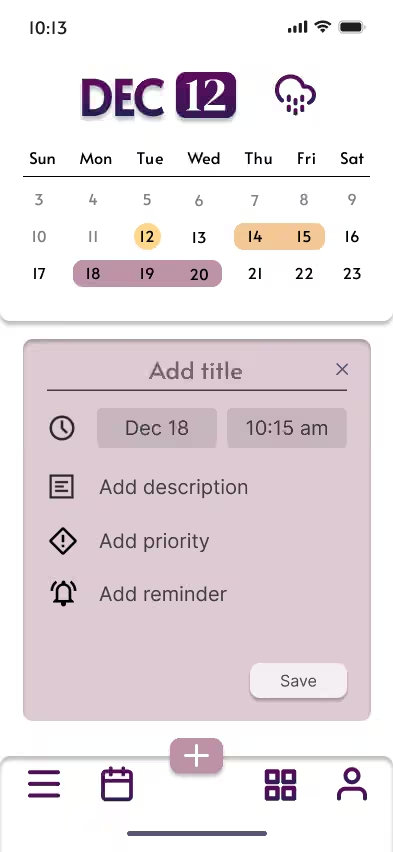
The revised sheet leads with title and time; other details stay optional.
Reflection & Next Steps
A working persona helped me frame the concept, but it cannot stand in for real planning habits. My next step would be to observe how students actually balance tasks with calendar events, then revisit the home-screen hierarchy against those findings.
I would also test whether the short onboarding flow shows the app’s flexibility soon enough. An interactive preview could help people understand what Agenda can do before asking them to set preferences.